


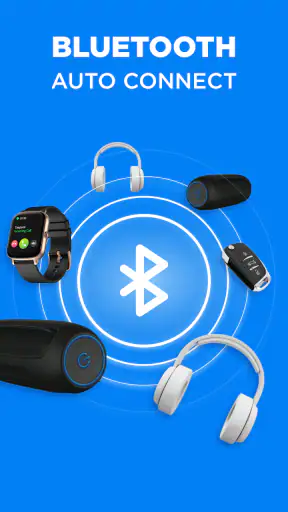
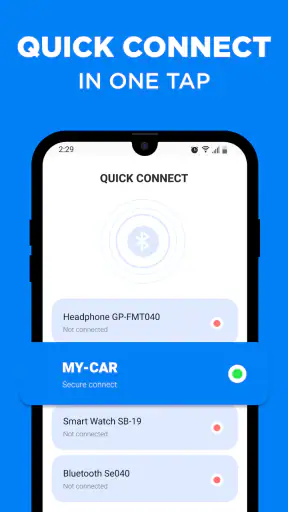
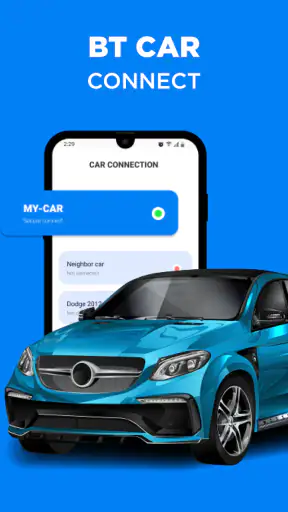
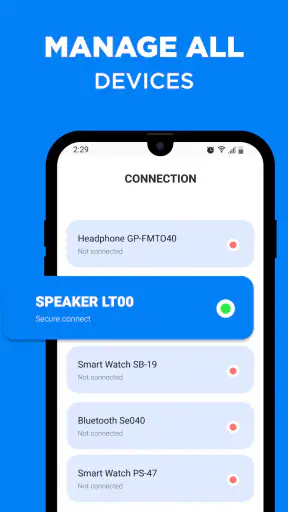
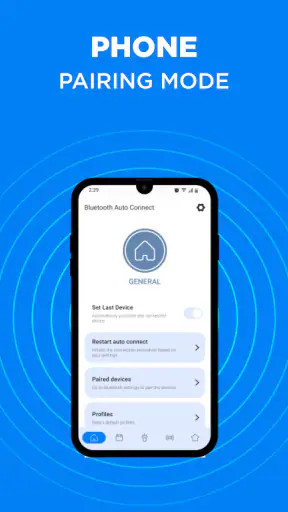
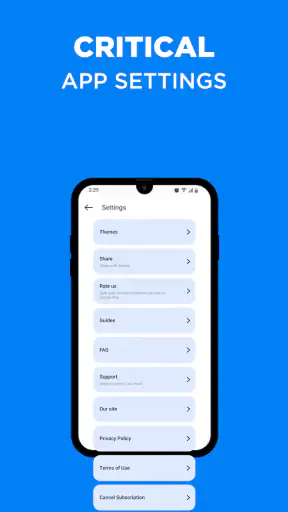
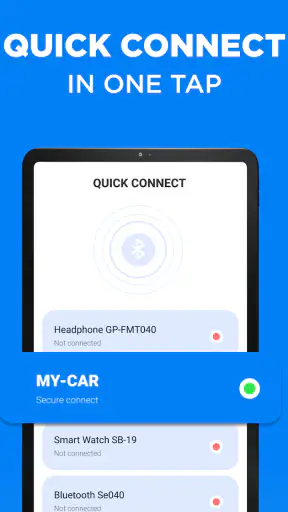
Bluetooth problems are rarely dramatic, but they are remarkably good at interrupting an ordinary day. A headset connects to the wrong phone, a car stereo forgets the last device, or a speaker stays silent even though the phone says it is paired. I tried Bluetooth - Auto Connect as a practical tool for those moments, and my impression is that it is most useful when your main frustration is getting Bluetooth devices to reconnect without repeated manual tapping.
This is a free tools app from Devolutionapps, aimed at everyday Android users rather than technical enthusiasts. It has a 4.2 average from around 11 thousand ratings and has passed one million installs, so it is clearly being used for a common problem. The app is rated for Everyone, runs on Android 7.0 and later, and its current version is 93.0. Optional purchases range from $5.99 to $59.99 per item, although the basic download is free.
I would not describe it as a magic repair kit for every wireless failure. Bluetooth - Auto Connect works best as a convenience layer around the phone’s existing Bluetooth system. If the real issue is a dead accessory, an incompatible profile, a damaged pairing record, or a car stereo that is still connected to another phone, no automatic connection tool can completely remove that obstacle. Understanding that distinction makes the app much easier to judge fairly.
Where Bluetooth - Auto Connect helps most
The everyday reconnection problem
The strongest use case is a repeated routine. Imagine leaving home with wireless earbuds, returning later, and finding that the phone has not restored the connection. Normally, I would open Bluetooth settings, wait for the device list, select the earbuds, and then check whether audio has actually moved away from the phone speaker. An auto-connect utility is appealing because it tries to reduce that sequence to a more predictable routine.
The same idea applies to a vehicle. If your phone and car stereo have already been paired, the annoying part is often not the first setup but the next twenty drives. A tool focused on automatic Bluetooth connections can be useful when the phone sees the car but does not reconnect in the order you expect. It can also help people who move between a watch, headphones, a portable speaker and a vehicle during the same day.
There is an important limitation here: “connected” does not always mean “ready for the task you want.” Bluetooth handles different kinds of connections, including calls, media and device-specific communication. A phone may connect to a car for calls while music remains routed elsewhere. When that happens, the app may appear unsuccessful even though the basic wireless link is active. I always check the audio output and the accessory’s own mode before blaming the connection tool.
Why the first setup can feel less automatic
The phrase auto connect can create an unrealistic expectation. It does not replace the initial pairing process. The phone and accessory generally need to recognize each other first, and the accessory must be switched on and discoverable when pairing begins. If I start by searching for an automatic solution before completing that foundation, I am only adding another layer to an unfinished setup.
My preferred approach is simple: pair one accessory normally, confirm that it works for the intended purpose, and only then use the app to make future reconnections easier. This also gives me a reference point. If the device works reliably through Android’s own Bluetooth settings but becomes inconsistent after adding automation, I know where to investigate.
Users can also get stuck because several remembered devices have similar names. A pair of earbuds may appear twice after a reset, while a car can retain a phone that is no longer nearby. Before changing anything in the app, I look carefully at the device name and remove obsolete pairings from Android’s Bluetooth settings. That small cleanup often matters more than repeatedly pressing a connect button.
Who will appreciate it, and who should skip it
I think the app is a reasonable fit for someone who uses the same Bluetooth accessories every day and wants fewer visits to the system settings. It is especially sensible for people who switch between familiar devices and find Android’s normal reconnection behavior inconsistent. Drivers, commuters and users with a regular headphone routine are the clearest audience.
I would be more cautious if you only connect a Bluetooth device once in a while. In that case, the extra app may not save enough effort to justify another thing to manage. It is also not the right choice for someone expecting it to repair hardware, improve sound quality, extend wireless range or make an incompatible accessory work. Those are separate problems.
Checks that prevent most false alarms
Before deciding that Bluetooth - Auto Connect is failing, I run through a short sequence. I make sure Bluetooth is enabled, the accessory has enough power, and it is not already connected to a tablet, laptop or another phone. Many accessories automatically reconnect to the last device they used, which can make the Android phone look unreliable when it is simply losing the connection race.
I also check distance and physical surroundings. A device that works beside the phone but drops out inside a bag or behind a wall may be dealing with ordinary wireless interference or a weak signal path. An auto-connect app cannot change the radio conditions. Testing beside the accessory gives a cleaner answer than repeatedly trying from another room.
Next, I confirm the pairing entry in Android. If the device is listed as saved but refuses to connect, I try the system’s own connection control once. If that succeeds, the problem may be timing rather than pairing. If it fails there as well, deleting the old pairing and creating it again is usually a more useful step than changing automation settings repeatedly.
For car systems, I check the stereo display rather than relying only on the phone. Some vehicles require the phone to be selected as the active media source even after the Bluetooth handshake has completed. Others keep several phones in memory and choose one based on availability. In that situation, the app can request a connection, but the car’s own rules may decide which device receives it.
A sensible first-use routine
After installing the app, I would begin with a single familiar accessory, not every Bluetooth device in the house. This makes the result easier to evaluate and avoids confusing a successful connection to one device with a failure involving another. I would pair the accessory through Android first, test calls or media, and then observe what happens after turning Bluetooth off and on or moving out of range and returning.
It is also worth paying attention to the exact moment the connection fails. Does the accessory never appear? Does it appear but remain disconnected? Does it connect and then drop? Does it connect for calls but not music? Those are different symptoms. Writing down that distinction, even mentally, prevents random troubleshooting and makes the app’s role clearer.
One practical tip is to test after a normal restart rather than immediately after installation. Phones can take a moment to restore their wireless state after booting, and accessories may wake more slowly. If the connection works after waiting briefly, the issue may be startup timing rather than a defective setup. I prefer changing one thing at a time so I can tell whether the app actually helped.
Recovering from a failed automatic connection
When an automatic attempt does not work, I avoid tapping connect over and over. Repeated requests can leave me unsure whether the accessory is busy, the phone is scanning, or another device has claimed the connection. Instead, I briefly open Android’s Bluetooth panel, identify the accessory, and see whether it is visible and available.
If it is visible but not connecting, I turn the accessory off and back on, then retry once. If the device disappears entirely, I check whether it has entered pairing mode or connected somewhere else. This is a useful distinction because a missing device is not the same as a rejected connection. The recovery step should match the symptom.
For a stubborn pairing record, I use Android’s forget-and-pair-again process. I do this on both sides when the accessory has its own remembered-device list. A car stereo, for example, may need the old phone entry removed from its menu as well. Leaving one half of the old relationship intact can produce a cycle in which the phone thinks the accessory is known but the accessory expects a different pairing state.
After repairing, I test the intended function immediately. With headphones, I play a short piece of audio and check the output selector. With a car, I test both media and calls if both matter to me. With a speaker, I check whether the phone is connected to the speaker or merely showing it as a remembered device. This workflow catches partial connections that a simple status label can hide.
Useful habits for several Bluetooth devices
People with several accessories should keep names understandable. If two devices appear as nearly identical model names, renaming them in Android can make manual recovery much faster. I use names that describe the location or purpose, such as car, desk speaker or travel earbuds. This does not change the wireless behavior, but it reduces the chance of asking the app or the phone to connect to the wrong device.
I also avoid testing multiple new accessories at once. Pairing a speaker, headphones and a car system during the same troubleshooting session creates too many variables, particularly when one device automatically reconnects in the background. Establishing one reliable connection first gives a clearer baseline for the next one.
A further trade-off is convenience versus control. Automatic behavior is valuable when my routine is stable, but it can be irritating when I deliberately want the phone to stay disconnected. For example, I may want audio from the phone speaker while a nearby accessory is powered on. In that situation, a manual connection is preferable. The best setup is not necessarily the one that connects most aggressively; it is the one that connects at the right times.
When the app is not the cause
Some failures sit outside the app entirely. If the accessory’s battery is nearly empty, it may advertise itself briefly and then vanish. If its firmware or hardware has developed a fault, the phone may show inconsistent behavior across every Bluetooth tool. Testing the accessory with another compatible phone is a useful way to separate an app problem from an accessory problem.
Android itself can also be the deciding factor. Battery management, system updates, manufacturer-specific background restrictions and changes to Bluetooth behavior can affect how reliably an app performs tasks outside the foreground. I do not assume that every phone treats background connection attempts in exactly the same way. If the app works while open but not after the phone has been idle, the operating system’s background behavior deserves attention.
Another common cause is profile mismatch. A device can pair for one purpose but not support the feature I expect. A basic speaker may handle media but not calls, while a car may expose separate controls for hands-free calling and music. Bluetooth - Auto Connect can help initiate the relationship, but it cannot add a profile the accessory does not provide.
Interference is another reason to stay realistic. Crowded wireless environments, multiple nearby accessories and physical obstacles can cause dropouts that look like failed automation. If the connection repeatedly breaks in one location but works elsewhere, I test in a quieter area before changing the app configuration. That experiment often reveals whether the issue follows the phone, the accessory or the environment.
How it compares with Android’s built-in controls
Android’s own Bluetooth settings remain the essential alternative. They are already installed, familiar and usually enough for occasional users. The system panel is also the best place to inspect saved devices, remove old pairings and confirm what the phone believes is connected. I would not remove that workflow from my troubleshooting routine just because I installed an auto-connect utility.
The app’s value is more specific: it focuses attention on repeated connection convenience rather than making me navigate the full settings menu each time. That can be worthwhile for a daily driver or a person who uses the same earbuds throughout the day. The trade-off is that another layer can make diagnosis less obvious when something goes wrong.
I would choose the built-in controls alone if I rarely use Bluetooth or if my devices already reconnect reliably. I would consider Bluetooth - Auto Connect when the repeated manual process is the actual nuisance. For users who need detailed device diagnostics, manufacturer-specific controls or advanced network analysis, a dedicated tool from the accessory maker may be a better match than a general connection helper.
What the free version means in practice
The app is available free of charge, which makes it easy to test against a real routine before deciding whether it deserves a permanent place on the phone. Optional in-app purchases are listed from $5.99 to $59.99 per item. I would approach those purchases carefully and first establish whether the basic experience solves my particular reconnection problem.
That advice is important because Bluetooth behavior varies so much between phones, accessories and vehicles. A purchase cannot guarantee that a device with a weak battery, incompatible profile or unreliable firmware will become dependable. I would only pay for an option after confirming that the app’s core approach works with the accessory I actually use, not merely with a different device in theory.
My practical verdict
After looking at the complete workflow, I see Bluetooth - Auto Connect as a focused convenience app rather than a universal Bluetooth repair tool. Its best role is reducing repetitive manual reconnection for familiar devices that are already paired correctly. That is a modest goal, but it addresses a real annoyance, especially for people who use a car stereo or headphones every day.
The app deserves a fair trial when Android’s normal connection process feels unnecessarily repetitive. Start with one accessory, confirm the original pairing, check that the device is not connected elsewhere, and test the exact function you need. If it still fails, use Android’s settings and the accessory’s own controls to determine whether the obstacle is pairing, routing, power, range or compatibility.
My recommendation is therefore conditional but positive: try it if automatic reconnection is your recurring problem, and keep your expectations grounded. For occasional Bluetooth users, the built-in Android panel may be simpler. For users with a stable daily routine, this free tools app from Devolutionapps can be a useful extra step between a saved pairing and a genuinely convenient connection.


